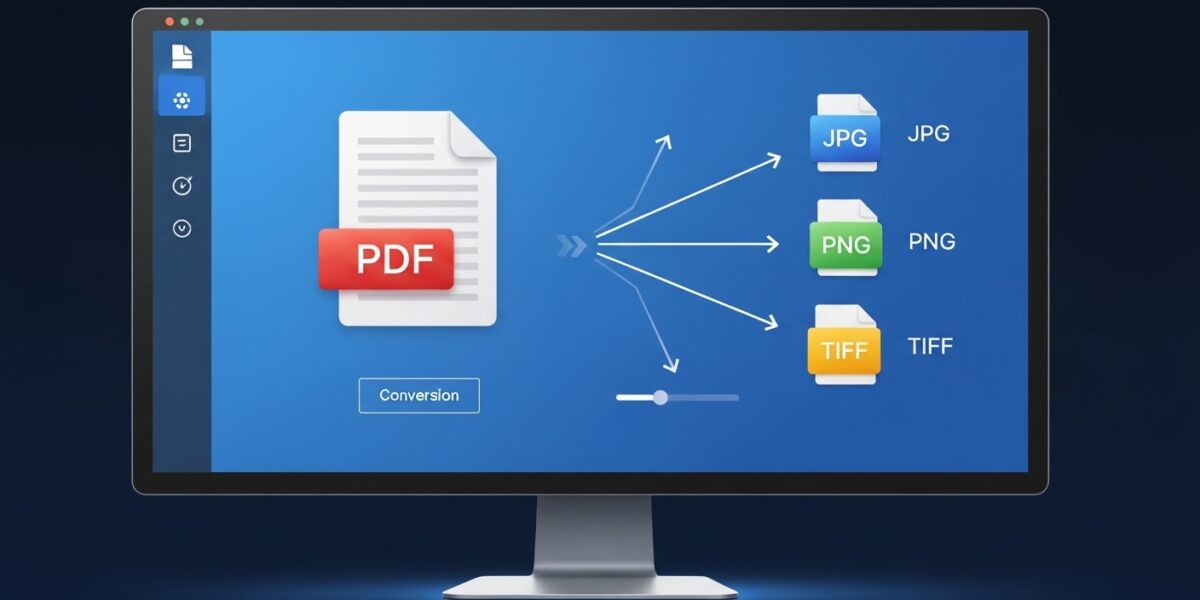
PDF to Image Converter
Convert PDF pages to high-quality image files
About This Tool
Our PDF to Image converter transforms PDF documents into various image formats including JPG, PNG, and TIFF. This tool is perfect for extracting images from PDF files, creating visual presentations, or making your document content more accessible in image format.
The converter maintains the original quality and resolution of your PDF while giving you options to customize the output format and quality settings.
Upload Your PDF File
Drag & drop your PDF file here or click to browse
How to Use
Image Format Comparison
| Format | Best For | Pros | Cons |
|---|---|---|---|
| JPG | Photos, complex images | Smaller file size, good for web | Lossy compression, no transparency |
| PNG | Graphics, text, diagrams | Lossless quality, supports transparency | Larger file size than JPG |
| TIFF | Professional printing, archiving | Highest quality, multiple compression options | Very large file size, less web compatible |
The PDF to Image Converter is a powerful tool that allows you to convert PDF files into high-quality image formats such as JPG, PNG, and TIFF. It preserves the original layout, clarity, and resolution of your document while giving you full control over output settings.
Perfect for presentations, sharing visuals, or extracting content from PDF files.
🔥 Key Features:
- 🖼️ Convert PDF pages to JPG, PNG, or TIFF
- 🎯 High-quality output with preserved resolution
- 📄 Convert all pages or selected pages
- ⚙️ Customize DPI and image quality
- ⚡ Fast and efficient processing
- 🔒 Secure file handling (no storage)
- 📱 Works on all devices
📌 How to Use:
- Upload your PDF file
- Choose pages to convert (all or selected)
- Select image format (JPG, PNG, TIFF)
- Adjust resolution (DPI) if needed
- Click “Convert to Images”
- Download your image files
💡 Use Cases:
- 🎨 Create visuals from documents
- 📊 Use PDF content in presentations
- 📝 Extract diagrams or images
- 🖥️ Share content as images
- 🖨️ Prepare files for printing